Practical testing
Why Face ID Needs More Than a Selfie Camera Test
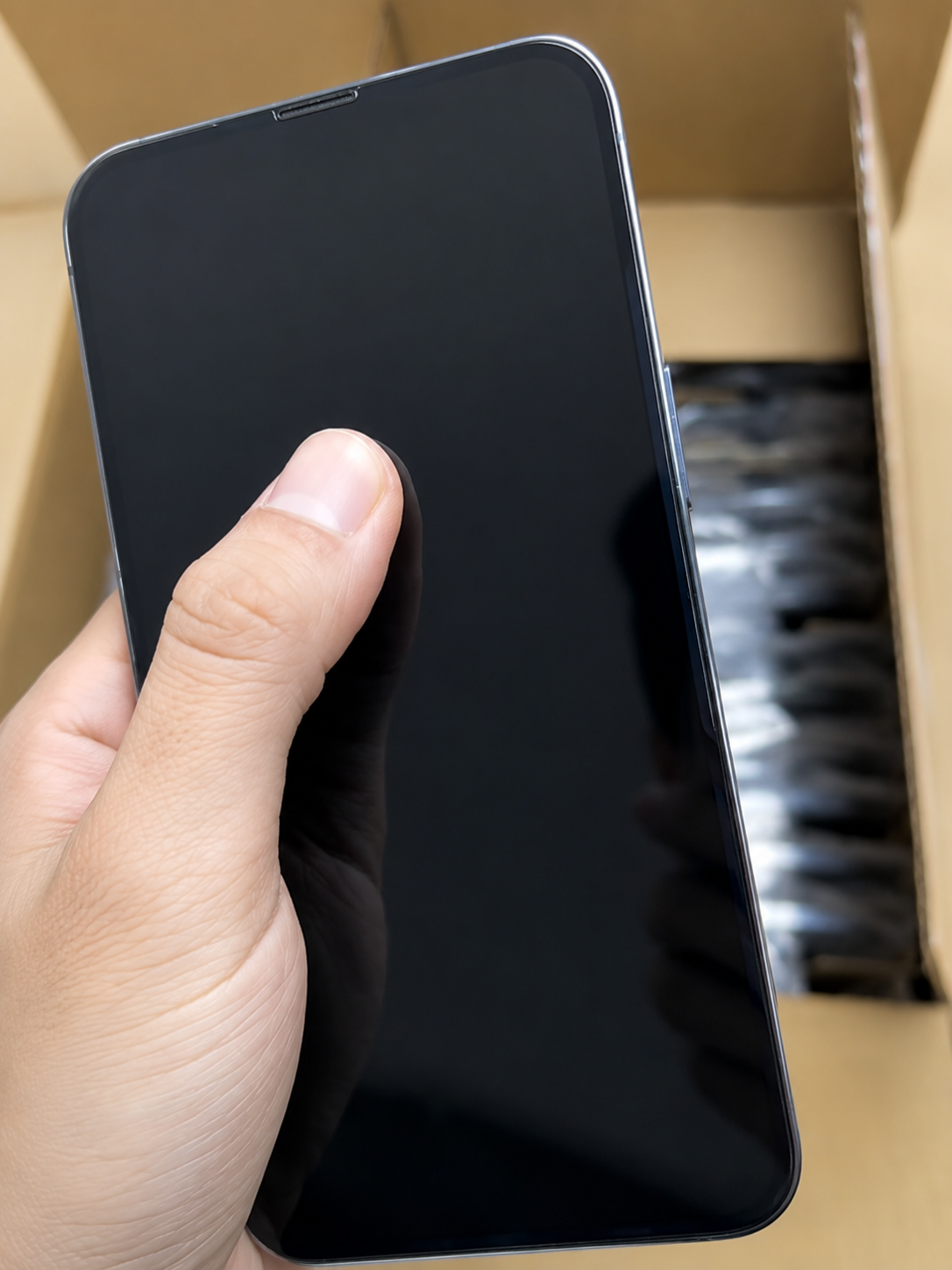
Face ID uses Apple’s front TrueDepth system to work with facial geometry, depth information and infrared sensing. The visible-light selfie camera is part of the front area, but it is not a complete Face ID test on its own.
Selfie test tells you
The visible-light front camera can capture an image or video. It is a useful supporting check for focus, clarity and preview.
Enrollment tells you
The biometric sensing system can detect and map a face sufficiently to complete its two guided scans.
A phone may potentially take normal selfies, make a FaceTime call or record front-camera video while still having a Face ID-related issue. Treat the selfie result as evidence about the camera, not proof of biometric authentication.
Before Testing Face ID on a Used iPhone
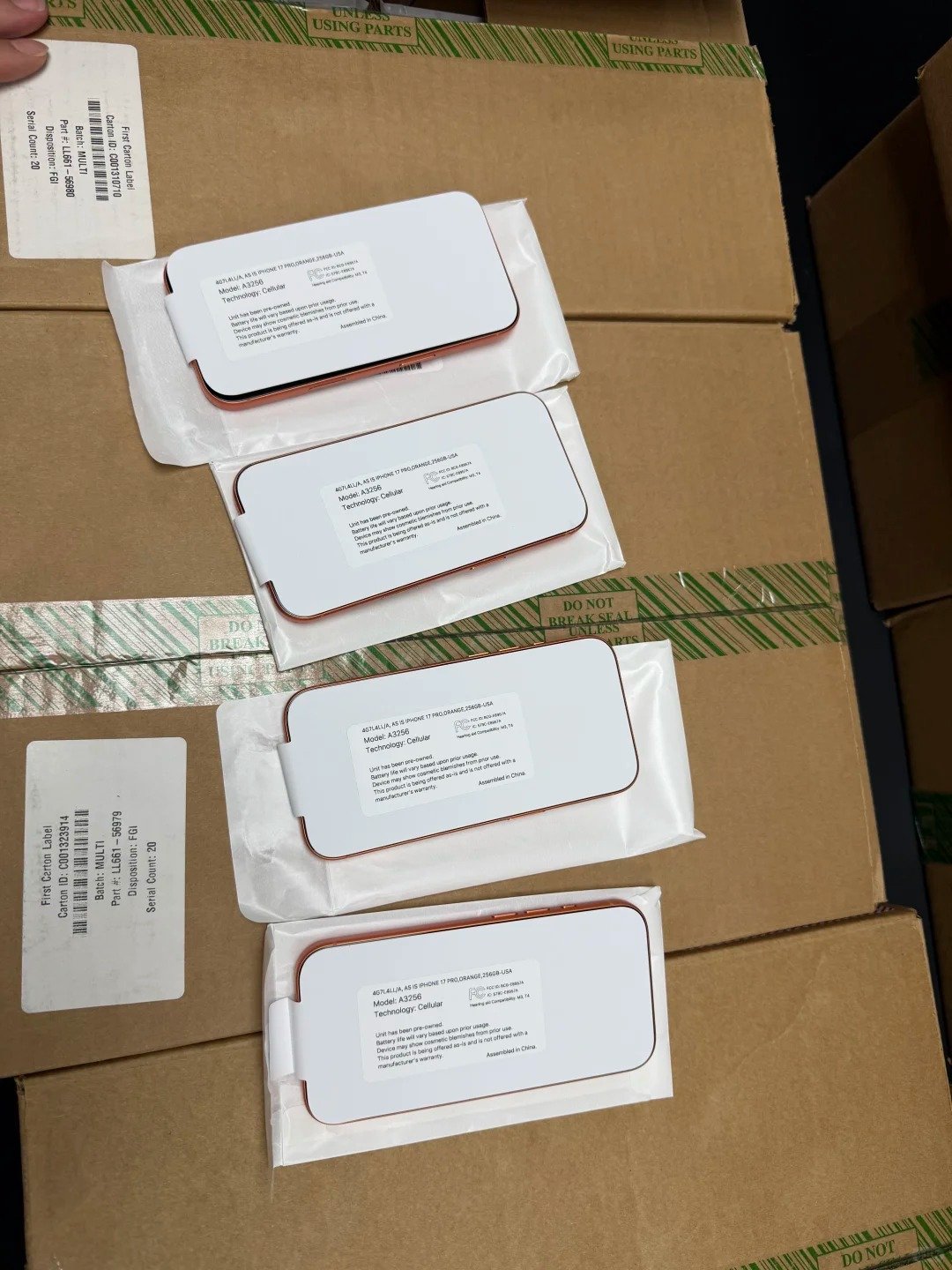
Ownership and access come first. Apple advises buyers of pre-owned iPhones to make sure the device is erased and ready for the new owner. If it shows iPhone Locked to Owner, the seller must remove Activation Lock before the purchase is completed.
- Confirm the seller can unlock the phone and reach the Home Screen.
- Confirm Activation Lock can be removed through the legitimate owner.
- Update iOS if practical for the transaction.
- Remove a case or protector that may block the TrueDepth area.
- Clean the top/front camera area gently.
Do not buy inventory that needs bypassing of a passcode, Face ID, Apple Account or Activation Lock. Those account controls must be resolved by the appropriate owner or organisation.
Test 1: Set Up Face ID From Scratch
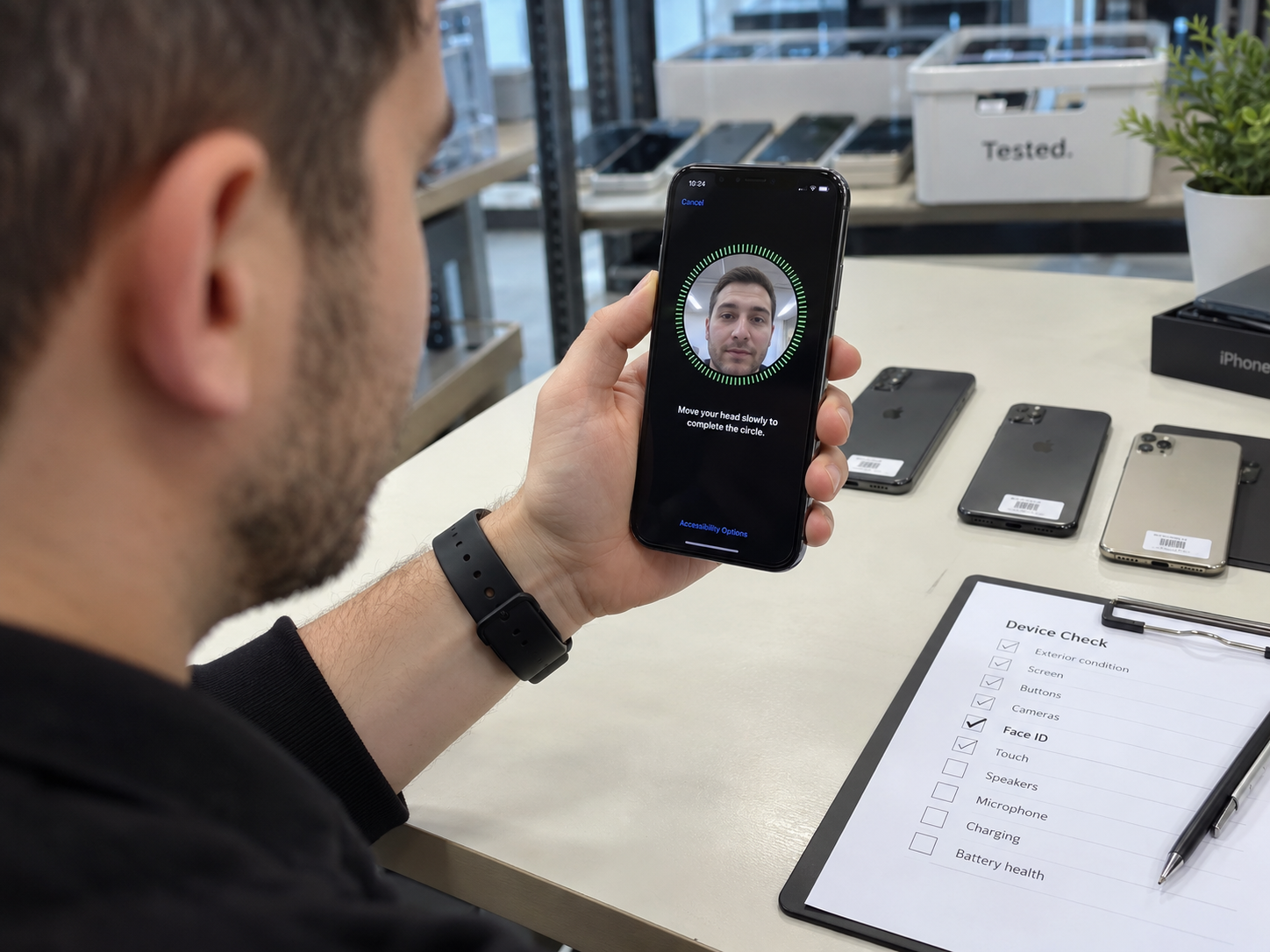
This is the most valuable test. A seller’s enrolled profile cannot verify that the buyer’s face can be scanned. With the seller’s permission, or after the phone has been erased and activated, go to Settings → Face ID & Passcode → Set Up Face ID.
- Hold the iPhone in portrait orientation and position the face inside the frame.
- Move the head gently as the on-screen circle requests.
- Complete the first scan and tap Continue.
- Complete the second scan, then finish setup.
Good result
- Both scans complete.
- No hardware or availability warning appears.
- Face ID setup finishes successfully.
Warning signs
- Setup cannot begin or repeatedly says Face ID is unavailable.
- Scanning fails even after normal position and obstruction are corrected.
- Setup cannot complete after simple settings and cleanliness checks.
One unsuccessful enrollment attempt does not automatically diagnose hardware failure. Correct basic causes first, then retest with a normal position and a clean sensor area.
Test 2: Lock and Unlock the iPhone With Face ID
After enrollment, use a real authentication test. Lock the iPhone, wake the display, look naturally at it, confirm the lock icon opens, swipe up and enter the Home Screen. Repeat this several times.
Use approximately three to five normal unlock attempts. This is not an Apple official requirement; it is a sensible receiving check that helps distinguish one lucky unlock from repeatable everyday function.
| Pass | Investigate |
|---|---|
| Face ID recognises the enrolled face consistently in ordinary use. | It works only intermittently despite correct distance, normal light, clear sensors and normal orientation. |
Test Face ID Under Normal Conditions
Start with the same conditions Apple recommends for normal use. Keep the iPhone roughly an arm’s length or closer—about 25–50 cm / 10–20 inches—from the face. Look toward the TrueDepth camera and keep eyes, nose and mouth visible.
| Condition | Buyer baseline |
|---|---|
| Distance | Approximately 25–50 cm / 10–20 inches. |
| Face | Eyes, nose and mouth visible; do not test through an obstruction. |
| Orientation | Use portrait first. iPhone 13 and later with iOS 16 or later can also support landscape Face ID. |
| Older devices | Test primarily in portrait; lack of landscape support is not by itself a defect. |
Test 3: Check the TrueDepth Camera Area
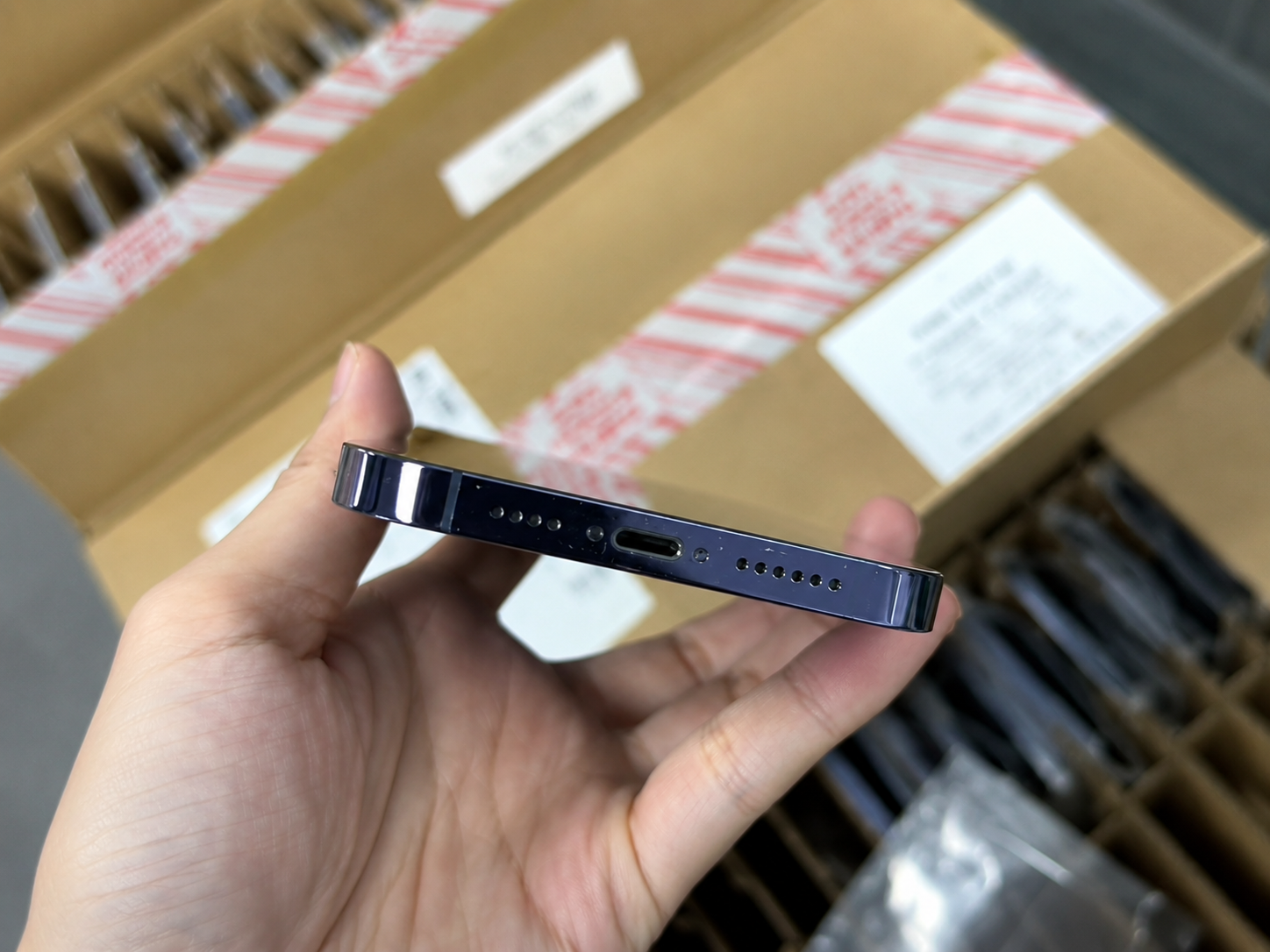
A simple physical obstruction can make a working system appear faulty. Inspect for fingerprints, dirt, dust, cracked glass near the sensors, a thick case lip, a damaged protector or a poorly fitted replacement screen around the notch or Dynamic Island.
- Remove the case.
- Temporarily rule out a problematic screen protector where appropriate.
- Clean the sensor area.
- Restart the device and enter the passcode.
- Test Face ID again.
A passcode immediately after restart is not necessarily abnormal: iPhone can require a passcode before biometric authentication is available again. That first passcode prompt should not be recorded as a Face ID failure.
Test 4: Check the Front Camera and Related Functions
Test a front-camera photo, front-camera video, focus, image clarity, camera switching, Portrait mode where supported and a FaceTime preview where practical. Memoji or facial-expression tracking can be a useful supporting observation on devices where it is available.
- Look for a clear preview, sensible focus and normal image capture.
- Watch for frozen preview, poor focus or unusual Portrait behaviour.
- Record the camera result separately from the Face ID result.
Test 5: Check Face ID & Passcode Settings
Open Settings → Face ID & Passcode and confirm that the settings area appears normally. Available options can include iPhone Unlock, password autofill, purchases and supported-app authentication.
Optional settings differ with iOS version, Apple Account configuration, region and installed apps. A disabled optional toggle is not automatically a hardware defect. The core question is still whether a new face enrolls successfully and authenticates reliably.
Weak test
The Face ID menu exists.
Better test
Face ID is already enabled.
Strong test
A new face can be enrolled successfully.
Best practical test
A new face enrolls and repeatedly authenticates the device.
Should You Test “Require Attention for Face ID”?
Attention detection helps Face ID check whether the user is actively looking at the device. During a normal inspection, leave the setting at its usual state unless there is an accessibility reason to change it. Look directly at the phone and confirm standard authentication first.
A buyer can look away as a supporting observation, but should not use that result as the primary hardware test. Accessibility settings can legitimately change attention behaviour.
Is Face ID With a Mask a Good Hardware Test?
Face ID with a Mask is an additional feature, not the main Face ID hardware test. Apple supports it on iPhone 12 and later with compatible iOS, and it is designed for portrait orientation. It should not be used to label an older Face ID iPhone defective.
- Test full-face Face ID first.
- Use the mask setting only after the core system passes.
- Keep model and software support separate from a hardware diagnosis.
Common Face ID Problems on a Used iPhone
| Symptom | Possible Explanation | Buyer Action |
|---|---|---|
| Cannot start setup | Software, obstruction or hardware issue | Clean, restart, update and retest |
| Enrollment repeatedly fails | Positioning, obstruction or TrueDepth issue | Rule out simple causes, then investigate |
| Face ID unavailable | Software or camera/repair issue | Check repair history and service status |
| Intermittent unlock | Obstruction, position or component issue | Repeat standard-distance testing |
| Selfie works; Face ID fails | TrueDepth-specific issue may exist | Do not accept selfie as proof |
| Finish Repair | Repair/calibration incomplete | Resolve repair before resale |
| Face ID Issue | Verification, calibration or part issue possible | Investigate repair history |
Do not diagnose a particular failed component from a single message. Use the message to start a documented investigation, then compare physical condition, testing and repair history.
Check Whether the Front Camera Has Been Repaired
On supported models, open Settings → General → About → Parts and Service History. Apple states that iPhone 12 models and later can show supported front-camera repair information; coverage and messages depend on the device, software and repair history.
Where shown, the TrueDepth camera can report Genuine, Used, Finish Repair or a Face ID Issue. The absence of front-camera history on an older device does not prove the camera was never repaired. Pair this check with a complete used-iPhone condition inspection.
Genuine
A genuine Apple front-camera replacement was completed through supported processes. It means repaired, not necessarily factory-original.
Used
On supported iPhone 16-and-later models, a genuine front camera was previously installed in another iPhone of the same model.
Finish Repair
The repair needs completion with Repair Assistant; Face ID can remain unavailable until calibration is complete.
Face ID Issue
It can reflect a non-genuine, previously used, malfunctioning or incompletely calibrated part. It does not identify one cause by itself.
What Does “Finish Repair” Mean for Face ID?
Finish Repair means the supported repair and calibration workflow has not yet been completed. Apple explains that Face ID cannot be used to unlock, authorise payments or sign in to apps until the relevant calibration is complete.
- Ask who performed the repair and whether they can complete it.
- Confirm the device is updated and connected when appropriate.
- Use Repair Assistant only through the supported repair path.
- Retest enrollment and repeated unlocks afterward.
Finish Repair does not mean the part is fake. It is an unresolved repair status that should be understood before the device is offered as fully functional.
Can a Replaced Screen Affect Face ID?
A screen replacement does not automatically mean Face ID will fail. It can be relevant if the repair left the TrueDepth area obstructed, damaged, misaligned or otherwise affected, but the correct response is testing—not assumption.
| Repair situation | What to do |
|---|---|
| Display replacement disclosed | Inspect screen fit, sensor area, Face ID enrollment and Parts History. |
| Front-camera / TrueDepth replacement | Give extra attention to history status, Finish Repair and new-face enrollment. |
| No history shown | Do not infer factory originality; use direct functional testing and seller disclosure. |
Does Face ID Testing Differ Between Older and Newer iPhones?
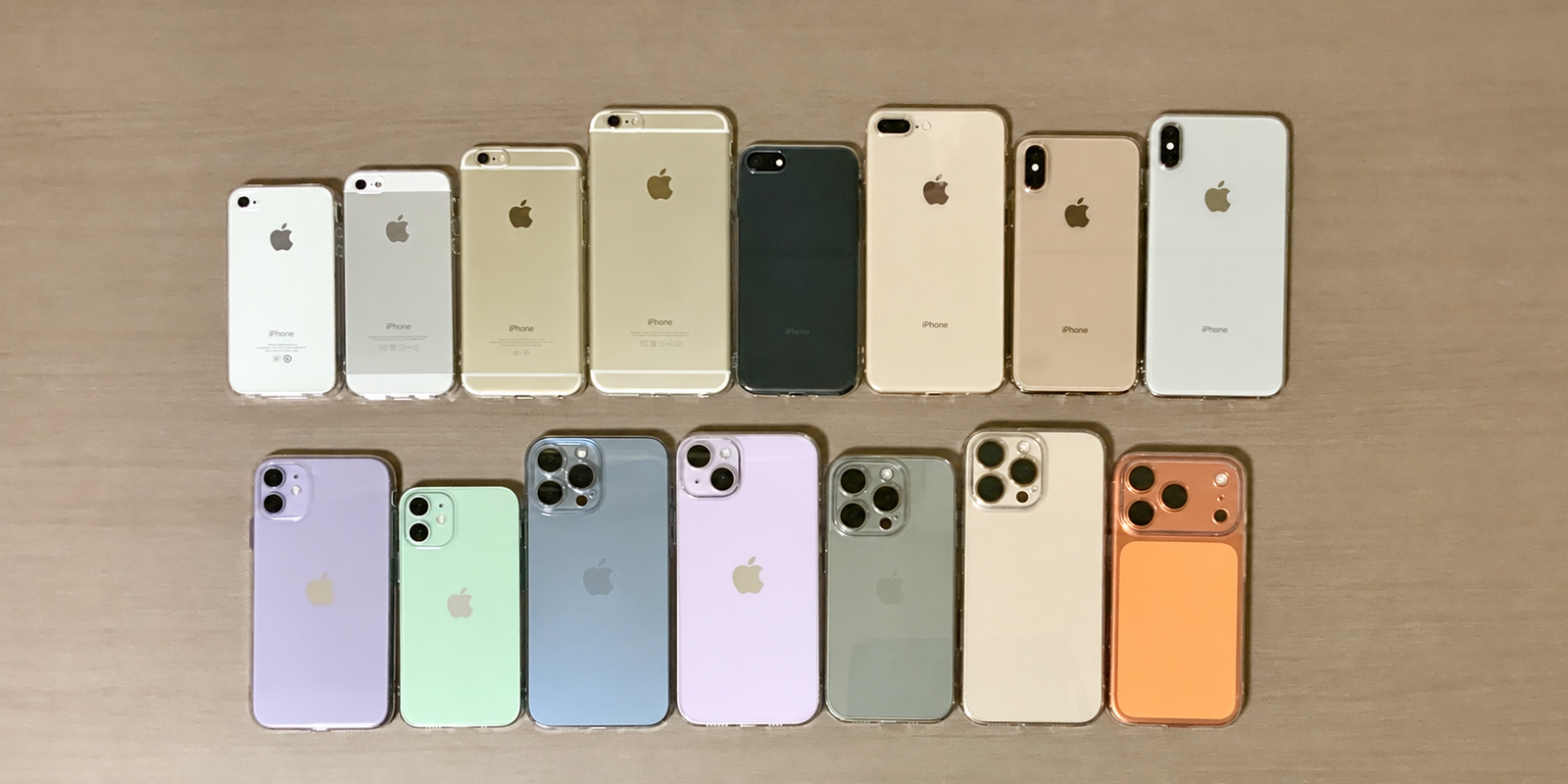
The core procedure stays the same: enroll a face, unlock the device and repeat authentication. Newer phones can offer more diagnostic context through Parts and Service History, Repair Assistant and newer status labels. Older devices rely more on direct setup, functional testing, seller disclosure and physical inspection.
Do not treat missing modern repair-history data on an older model as evidence that no repair occurred. The value of the test is that it checks the device in front of the buyer.
Face ID Red Flags Before You Buy
- The seller will not permit a Face ID test.
- Enrollment cannot complete or availability errors repeat.
- Finish Repair or Face ID Issue is unexplained.
- Front-camera history contradicts the listing.
- “All original” is claimed despite recorded component replacement.
- The selfie camera works but Face ID consistently fails.
- Activation Lock cannot be removed.
None of these signals alone automatically establishes fraud. Together they mean stop, investigate and verify before purchasing or placing the phone in resale inventory.
Normal Situations That Can Look Like Face ID Problems
| Situation | Hardware Failure? |
|---|---|
| Passcode required after restart | Usually no |
| Face ID not set up | No |
| Sensor blocked by dirt, case or protector | Usually no |
| Older iPhone tested in landscape | No |
| Mask feature tested on unsupported model | No |
| Repeated setup failure after basic troubleshooting | Possible; investigate |
| Face ID Issue plus failed enrollment | Requires investigation |
Quick Face ID Test Before Buying
Use this compact three-minute workflow for a first-pass inspection. It identifies obvious concerns quickly, but it should still sit inside a full quality-control process.
Minute 1 — Access
Confirm the phone is accessible, check Activation Lock status, inspect the sensor area and open Face ID settings.
Minute 2 — Enrollment
Reset old Face ID if permitted, enroll the buyer’s face and complete both scans.
Minute 3 — Authentication
Lock and unlock repeatedly, check the front camera and review Parts History where supported.
Face ID Is Only One Part of a Used iPhone Inspection
Face ID is a biometric check, not a substitute for ownership, identity, network, battery, display or general hardware checks. A sound buying decision combines the results.
| Check | What It Verifies |
|---|---|
| Face ID | Biometric authentication |
| Parts and Service History | Supported repair history |
| Battery Health | Battery condition |
| Activation Lock | Previous-owner account security |
| Carrier Lock / IMEI | Network suitability and device status |
| Display and camera tests | Screen and imaging function |
| Audio and charging | Core hardware operation |
| Model / A-number | Exact device and regional variant |
Use carrier-unlock checks, Battery Health and physical condition records alongside Face ID. No single test should approve a used phone by itself.
Should Broken Face ID Affect Used iPhone Grading?
Face ID functionality and cosmetic grade are different attributes. A phone can look excellent but have non-working Face ID; a scratched phone can have fully functional biometric hardware.
Cosmetic condition
Scratches, dents, frame wear and glass condition.
Functional condition
Face ID, cameras, display, charging, audio and connectivity.
Repair condition
Genuine, Used, Unknown or incomplete repair information.
For B2B purchasing, record Face ID as a functional attribute. Never infer it from appearance alone.
Why Face ID Testing Matters in Wholesale iPhone Sourcing
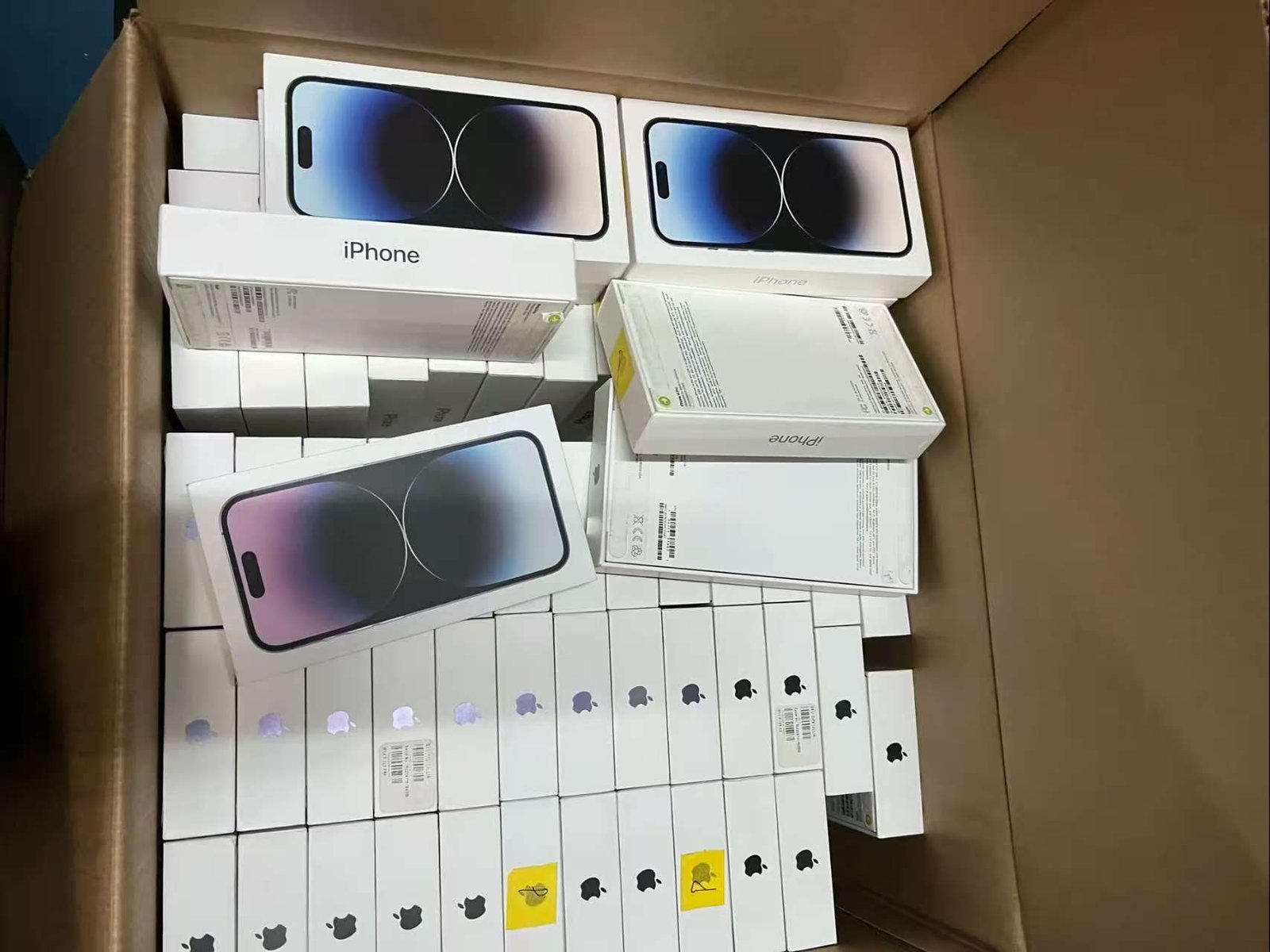
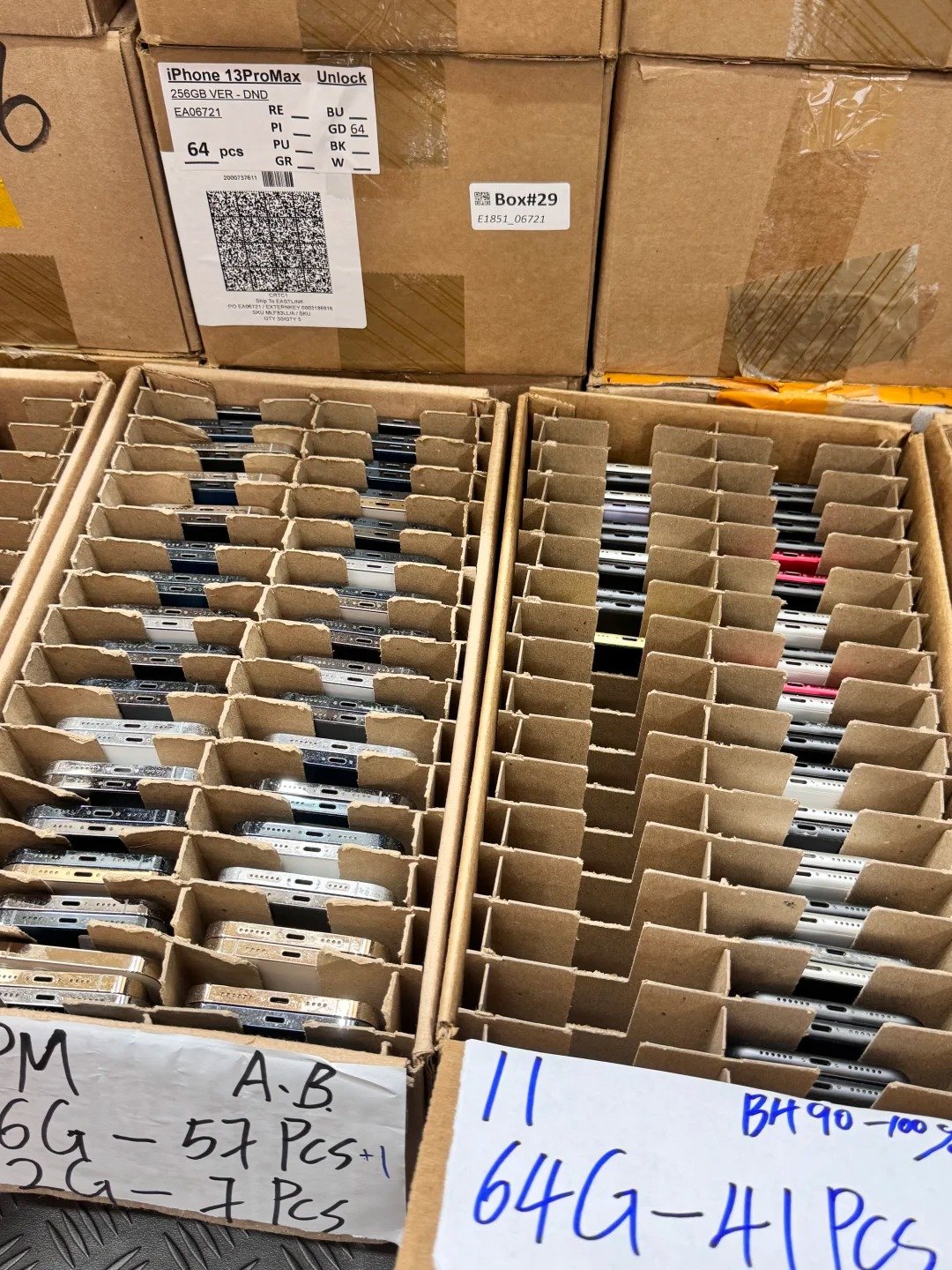
One failed Face ID device may be manageable for a private buyer. Across a bulk shipment, inconsistent biometric functionality can create incorrect grades, customer complaints, returns, marketplace disputes, repair work and after-sales cost.
For wholesale lots, consider recording
- Face ID pass or fail.
- Front-camera pass or fail.
- Parts and Service History status.
- Any unresolved repair warning.
- Model and cosmetic grade.
This is a transparent receiving record, not a claim that every used phone is identical. It helps purchasing, quality control and sales keep exceptions tied to the right unit.
Face ID Wholesale Inspection Checklist
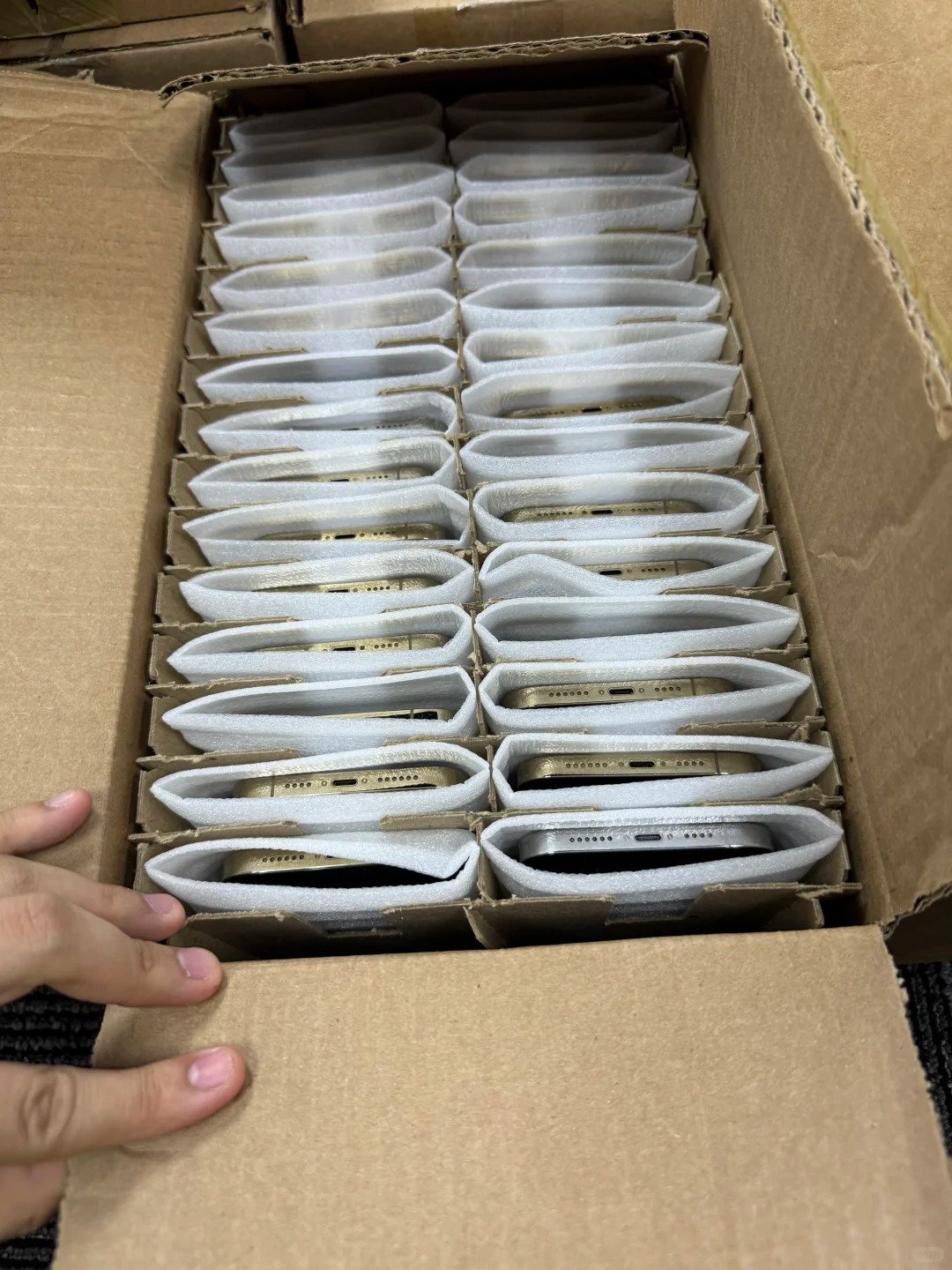
Ownership
Activation Lock removed; device accessible; seller or account issue resolved.
Face ID
Setup starts; both scans complete; lock-screen authentication passes; repeated authentication is consistent.
Front Camera / Repair
Front camera works; sensor area intact; history checked; repair status understood; Finish Repair resolved where applicable.
Documentation
Face ID result and repair history recorded; functional grade separate from cosmetic grade; exceptions disclosed.
What to Ask About Face ID Before Buying iPhones in Bulk
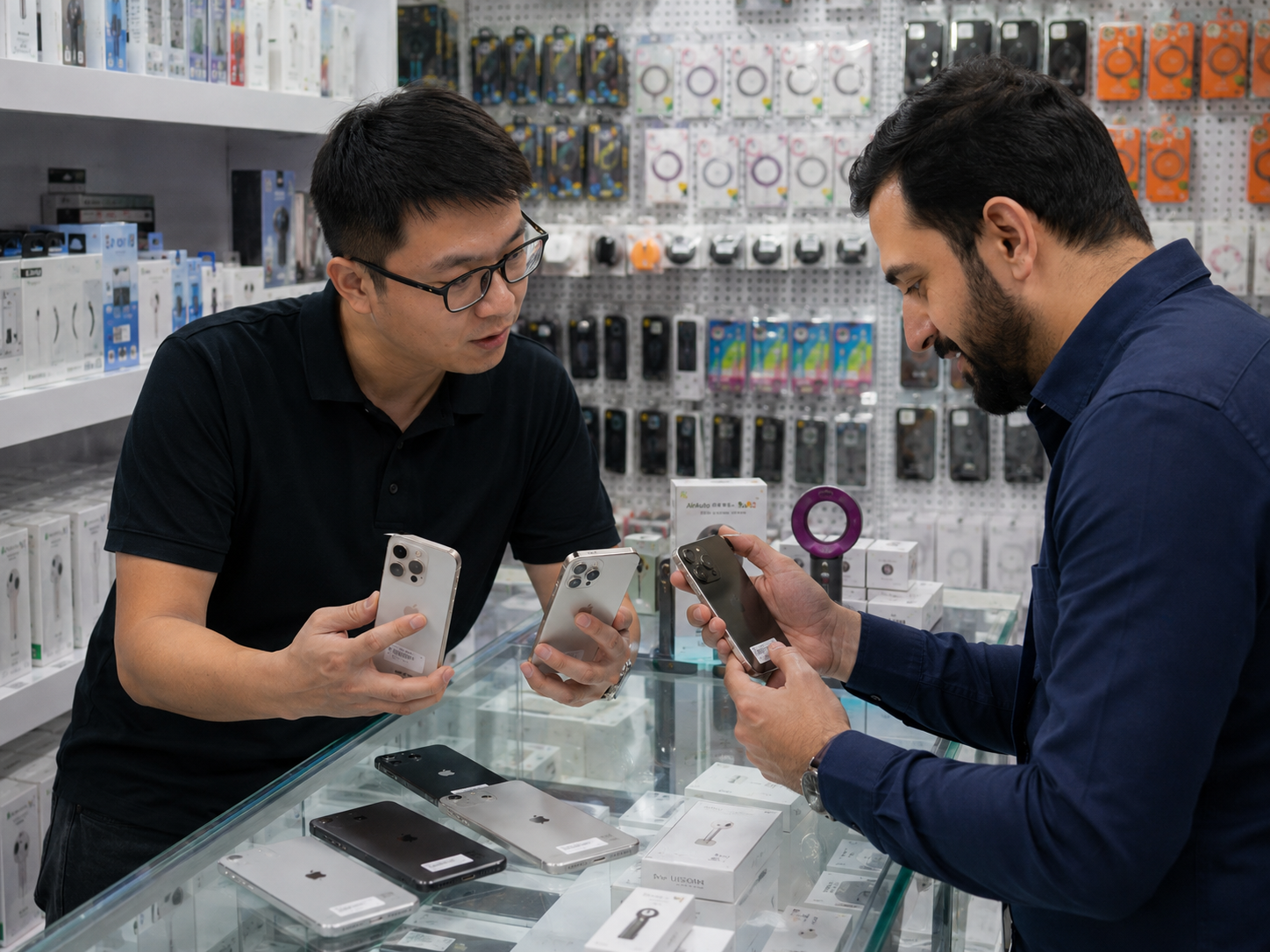
- Is Face ID tested on every relevant model or lot?
- Can a new face be enrolled successfully?
- Are Face ID failures separated from fully functional inventory?
- Are front-camera repairs disclosed where available?
- Are any phones showing Face ID Issue?
- Are any phones showing Finish Repair?
- Is Parts and Service History reviewed on supported devices?
- Is Face ID status separated from cosmetic grade?
- How are Face ID failures classified?
- Can buyers request inventory with fully functional Face ID?
Professional buyers can contact HQB with model requirements, grades, quantities, destination markets and functional requirements. Confirm commercial details for the actual order; do not assume test-pass rates, warranty periods, MOQ, volume or shipping times.